Feedback Management
Also known as Collaboration Hub, the Feedback Management tab is where authors manage all feedback submitted by users. When a user submits feedback, it makes a journey through your Panviva system as described below:
-
A user sends feedback about a Panviva document.
-
The feedback is captured in the Feedback Management tab.
-
If configured, the document owner is emailed that feedback has been submitted.
-
-
An author assigns the feedback to themselves or another author.
-
The assignee is notified via Message.
-
If configured, the Document Owner is also notified via Message.
-
If configured, the assignee is emailed that feedback has been assigned to them.
-
The feedback sender is notified that their feedback is being reviewed.
-
-
The assignee updates the document (or not) to incorporate the feedback.
-
The assignee closes the feedback.
-
The feedback sender is notified via Message that the feedback is closed.
-
If configured, the Document Owner is notified (via message, and if configured, email as well) that the feedback is closed.
-
Note: (Customers prior to July 2018) The new Collaboration Hub was introduced in April 2018. For customers who had Panviva implemented prior to July of 2018, it is possible that you are still using the older version of Feedback.
If you have not yet transitioned to the new Collaboration Hub version of feedback, we encourage you to make the move. Contact panviva-support@uplandsoftware.com for more information.
Feedback Management
The Feedback Management window contains two panes:
- The left side lists the feedback submitted by users
- The right side displays details about each feedback item. A feedback item must be selected from the left pane for the details to display
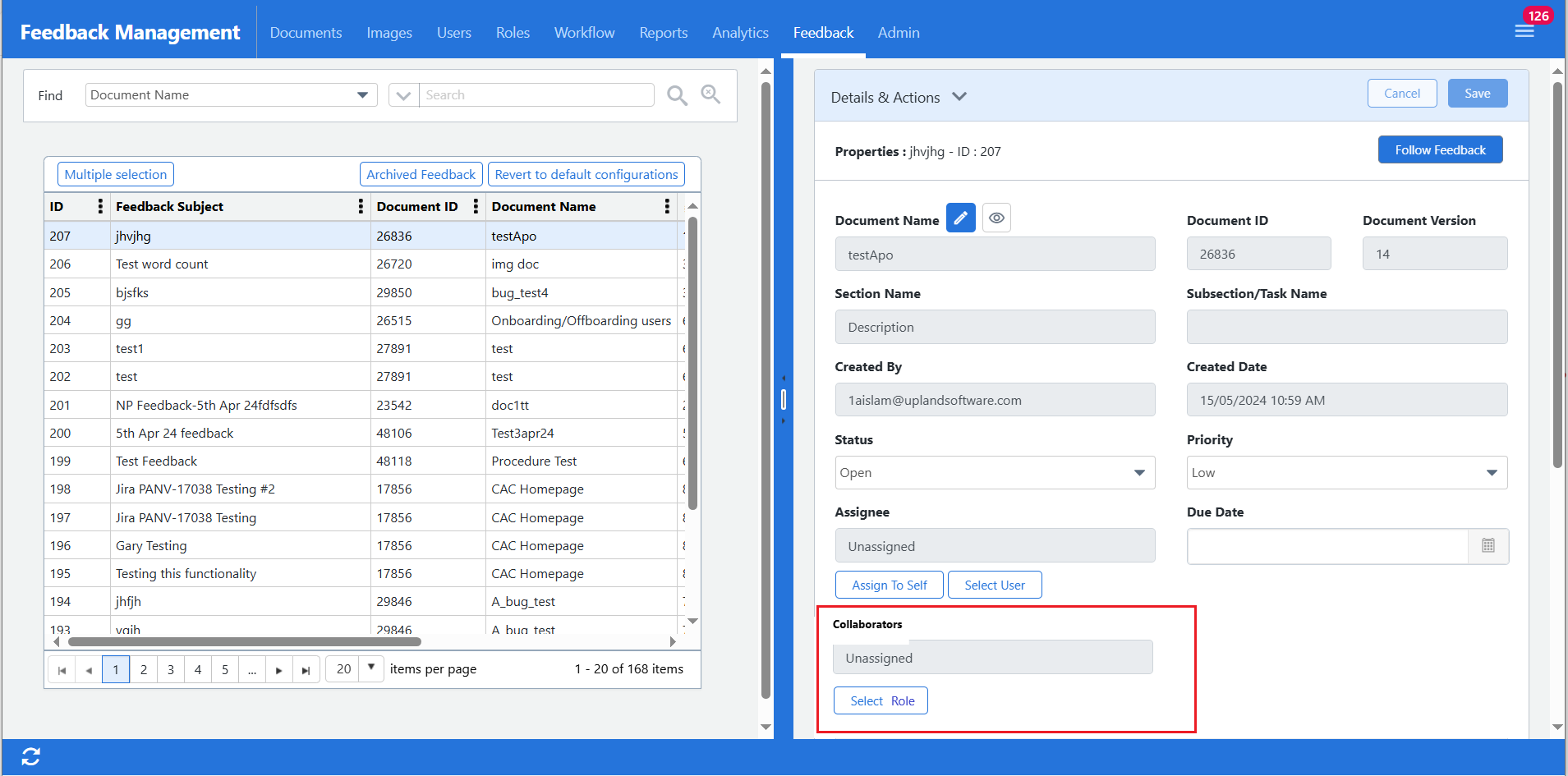
Click image to zoom
Feedback list
|
Column |
Description |
|---|---|
|
ID |
Displays the feedback ID number. |
|
Feedback title |
Displays the title given by the user. |
|
Document ID A unique identifier assigned to each Panviva document for version tracking and linking. |
Displays the ID of the document given feedback. |
|
Document Name |
Displays the name of the document given feedback. |
|
Status |
Displays the status of the feedback. |
|
Priority |
Displays the priority/importance of the feedback. |
|
Assignee |
Displays the name of the user to whom the feedback was assigned. |
|
Due Date |
Optional. (If the Due Date field was completed in the Feedback properties, it displays here.) |
You can change the columns being displayed by clicking the vertical elipsis  at the top of a column. You can also sort the list by ascending or descending order.
Note: To reduce the number of feedback items shown, it is a good idea to use the filter to show only items that are relevant to what you are doing. For instance, if you are assigning feedback, select the Unassigned checkbox to show only items that have not been assigned.
Feedback properties
Feedback managers can update the following fields in the feedback properties:
|
Field |
Description |
|---|---|
|
Status |
|
|
|
|
Assignee |
You can assign the feedback item to yourself or any user in an author role. |
|
Due Date (Optional) |
You can assign a due date but it does not mean the feedback assignee must complete it by that date. It is more of a suggested due date. |
| Collaborators |
You can assign a custom role to enable members/ Viewers using to receive notifications via emails and in-app messages on a feedback. This allows viewers to collaborate through private comments within Panviva. This can be useful for Viewer A user role with read-only access to Panviva documents who can also submit feedback. users to contribute to resolve a feedback without full author access. To assign a collaborator, use Select Role. Note: To remove the assigned custom role as a collaborator, select Remove Role button beneath the Collaborators field. The collaborator field will remain empty the feedback is re-assigned to any new custom role as a collaborator. |
|
Custom fields |
If there are custom fields they display here. The fields display the user's selection of the custom fields but you are able to change them if necessary. |
|
Comments |
This allows you to comment (up to 2000 characters) on what was done with the feedback. You can also select 'Submit private comment' so that the comment is seen only by other authors who have permissions to this document. |
Feedback settings (Admin users)
If you have access to the Admin Feedback settings you can enable or disable the ability for users to send Feedback via the  (feedback) icon in Viewer. You can also create custom fields for users to complete as part of submitting feedback.
Note: You must have advanced permissions to access the Admin menu of options
|
Setting |
Description |
|---|---|
|
Document feedback |
This allows you to enable or disable feedback as well as enable or disable feedback notifications to automatically be sent to the document owner. |
|
Manage custom fields |
You can create custom fields that users can complete when submitting feedback. This can be useful in helping you identify which department or work group a user is from. The fields can be free form text, a list of selections, numbers or dates. They can also be required fields. |
For more information, see Manage feedback settings.
Feedback email notifications
Panviva can send email notifications when users submit feedback on documents. These notifications help Document Owners and other stakeholders stay informed and respond to new feedback promptly.
Note: To activate or modify feedback email notifications, submit a request to panviva-support@uplandsoftware.com
Review the options below and inform the support team which settings you would like enabled for your organization:
|
Field |
Description |
|---|---|
|
Email notification to Document Owner |
Sends feedback notification emails directly to the Document Owner. If you have multiple departments responsible for maintaining their own documents, select this option. Be sure to set the document owners in the Document Management:
|
|
Email notification to Assignee |
Sends a notification email to the user assigned to manage a specific feedback item. |
|
Enable notifications to an email address |
Sends all feedback notifications to a single designated email address. This option is useful for smaller teams that prefer centralized monitoring of feedback. |
| Allow feedback content to be displayed | Includes the feedback title and message in the notification email. |
Feedback notifications
By enabling feedback notifications on admin feedback settings, users and collaborators can be promptly informed of any changes to a feedback. The following table highlights the notifications received and its recipients:
| Notification Type | User-Action | Recipients | Message Center | Message | |
|---|---|---|---|---|---|
| Creation Notification | When a feedback is first submitted or created. |
Users/ Roles with document's owner permission. Note: If the user providing feedback is also the document owner, they will not receive notifications. |
Yes | Yes | Title: Feedback created Message: "Feedback ID: 722 has been created." |
| Assignee Notification | When feedback is assigned. |
Users assigned to the feedback on the Feedback Management tab, collaborators and followers. Note: Users will not be notified when they assign feedback to themselves by selecting Assigned to Self in the Assignee field. Furthermore, the document owner will not receive this notification unless they follow the feedback. |
Yes | Yes | Title: Feedback assignment Message: "Feedback ID: 719 is assigned to you." |
| Update Notification | When Feedback list is updated (Priority, Status, and Assignee field). |
Users assigned to the feedback on Feedback Management tab, collaborators and followers. Note: The document owner will not receive this notification unless they follow the feedback. |
Yes | Received only by Assignee | Title: Feedback updated Message: "Feedback ID: 8278 has been updated." |
| Private Comment Notification | When a private comment is submitted by selecting Submit Private Comment checkbox in the manager. | Author users who follow the feedback and collaborators. | Yes | No | Title: Feedback comment Message: "Feedback ID: 8278 has a new comment." |
| Public Comment Notification | When a comment is submitted from the Manager and Viewer | Followers of the feedback and collaborators. | Yes | No | Title: Feedback comment Message: "Feedback ID: 8278 has a new comment." |